Glossary
Plain definitions for the acronyms and scores you'll see around the platform.
Acronyms
Call for Papers
Open invitation to submit speaker proposals for an event.
Pitch Path
How you'd actually pitch a speaker into this event. Derived from how the event picks its speakers, its CFP status, and whether speaking slots are sold to sponsors.
An active call for proposals is accepting submissions. Submit through the CFP form or platform; the deadline (when known) is shown next to the path.
No active CFP. Either the call is closed, the event is curated or invite-only, or no submission process turned up. Pitch the program directly. The path shows “contact known” when we have a named program contact and “no contact” when only a general inquiry channel is available.
Speaking slots are reserved for sponsors, so you buy your way onto the stage through the sponsorship package rather than a CFP.
Match Score
A 0–100 score shown on recommended events during speaker onboarding, measuring how well an event aligns with their expertise, audience, and geography. Composed of four weighted dimensions.

Topic & Industry Alignment
Event focus areas vs. speaker expertise
Prestige & Audience Quality
Audience seniority, event scale, and catalog prestige score
Geographic Fit
Event location vs. speaker's preferred countries
Audience Match
Whether the event's audience profile suits the speaker
Prestige
A 0–100 score of an event's media notoriety: how likely a speaking slot is to turn into outbound press coverage. Driven by named-outlet press mentions, Wikipedia presence, attendance scale, sponsor caliber, and the prominence of previous keynoters. Shown on event cards, used for sorting and the min_prestige filter.
Household name
World Economic Forum (Davos), CES, Cannes Lions, the Olympics. Covered by mainstream general-news outlets, not just the trade press.
Industry flagship
AWS re:Invent, RSAC, Black Hat, Web Summit, Money20/20. Top of their sector, with steady business and tech press coverage.
Industry-known
ICRA, Aspen Ideas, COMPUTEX. Well established, with active coverage in specialist trade outlets.
Niche but real
DrupalCamp, XML Prague, Photonics North. Active community and working-professional attendees, but little outbound media.
Specialist or unverified
Small community meetups, academic-only events, no public footprint.
Why does the Event Intelligence report show a different score?
This catalog Prestige reflects an event's media notoriety at a glance. The Event Intelligence deep-dive report (opened from an event's "Event Intelligence" button, on paid plans) computes its own Prestige Score as a weighted combination of factors specific to that event: speaker line-up, sponsor list, attendee seniority, social-media reach, and competitive landscape. The two scores answer different questions: "how visible is this event in the press?" vs. "how does this specific event break down across all prestige factors?" Use the catalog Prestige to filter and sort the list; consult the Event Intelligence Prestige Score when evaluating a single event in depth.
Getting Started
Three walkthroughs to get you going: onboarding your first speaker, and wiring Lark up to Claude or ChatGPT.
Onboard a speaker
Starting from an empty account. You create a client and add a speaker, then Lark does the reading: it builds their targeting profile and comes back with a ranked list of events worth pitching.
- 1
Create the client you're pitching for
Clients is your roster. New client only asks for a name, and everything else hangs off that. You also get a Saved for later list, for events you want to hang on to before you've worked out who they suit.

- 2
Add a speaker to that client
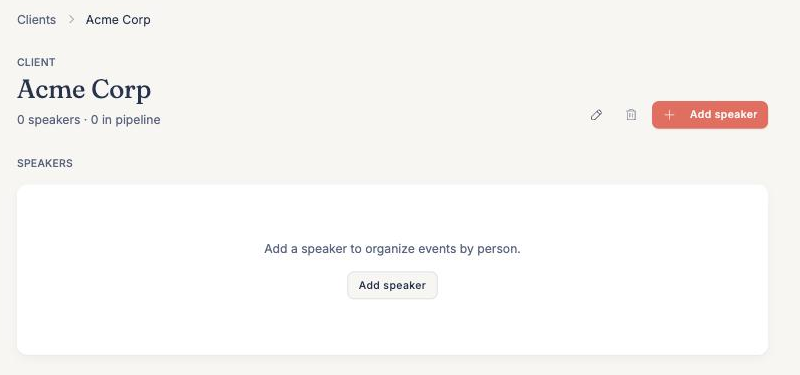
Open the client and choose Add speaker. It sits in the header, and it shows up in the empty state too while the client has nobody on it yet. Either one asks for the speaker's name first, then how much you want filled in. Pick Research and match to open the onboarding wizard.
- 3
Tell Lark who to research
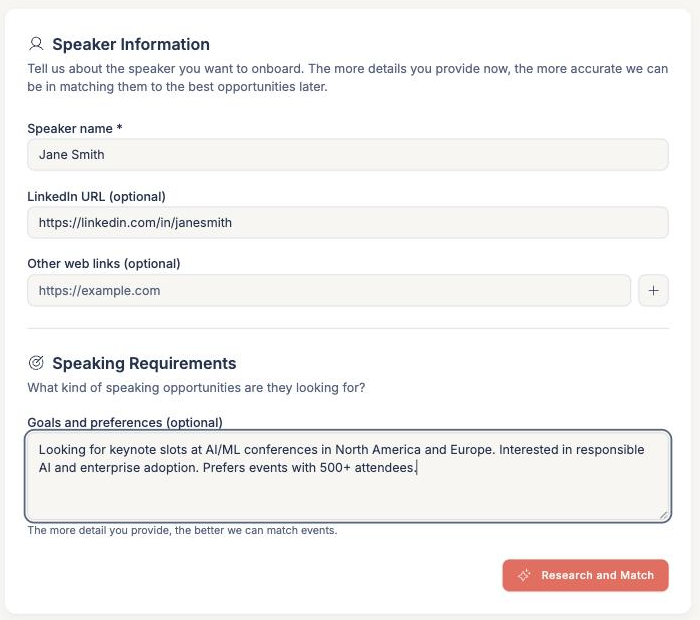
The name is the only thing you have to fill in. A LinkedIn URL and any other links, like a bio page, a past talk or a company profile, give the research more to go on. Goals and preferences is plain free text, so just say what you're after: the topics, the session formats, the regions that matter. It shapes both the profile and the matches. On a phone, Goals and preferences gets its own Requirements step.
- 4
Let the research run
Research and Match creates the speaker, reads up on them across the web, builds a targeting profile, and scores the whole catalog against it. Give it a couple of minutes. The progress bar tells you which stage it's on.

- 5
Check the profile, then pick your events
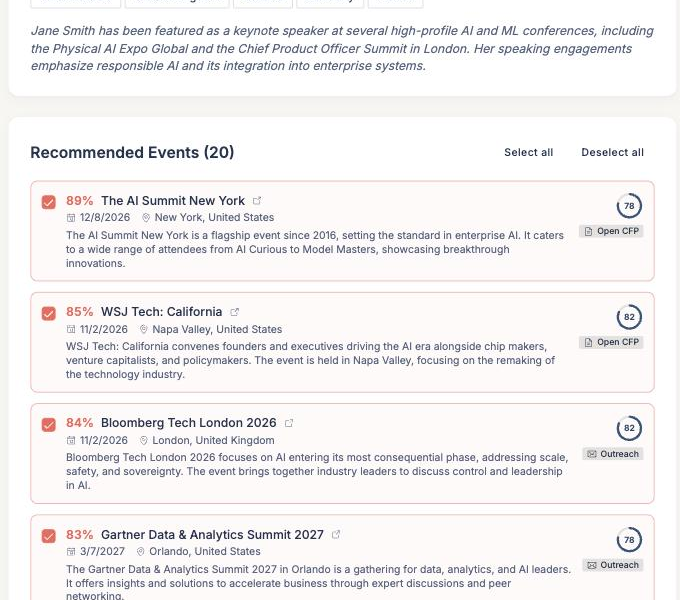
The About text comes back editable, so fix anything the research got wrong before you save. The targeting profile is shown below it. Underneath, Recommended Events are ranked by Match Score. Tick the ones worth pitching, or use Select all and Deselect all, then hit Save events.
- 6
That's it, they're in the pipeline
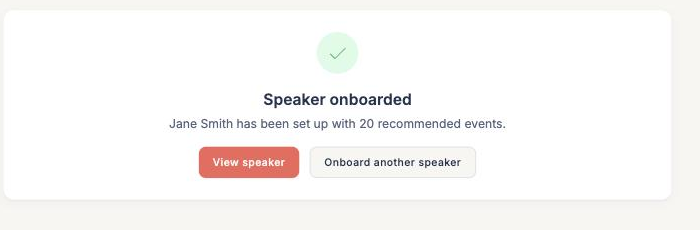
View speaker opens the profile you just built, with the saved events waiting in their pipeline. Onboard another speaker clears the wizard down for the next one.
Connect to Claude
Add Lark to Claude as a custom connector and you can search events, check a client's pipeline, and save events without leaving the conversation.
- 1
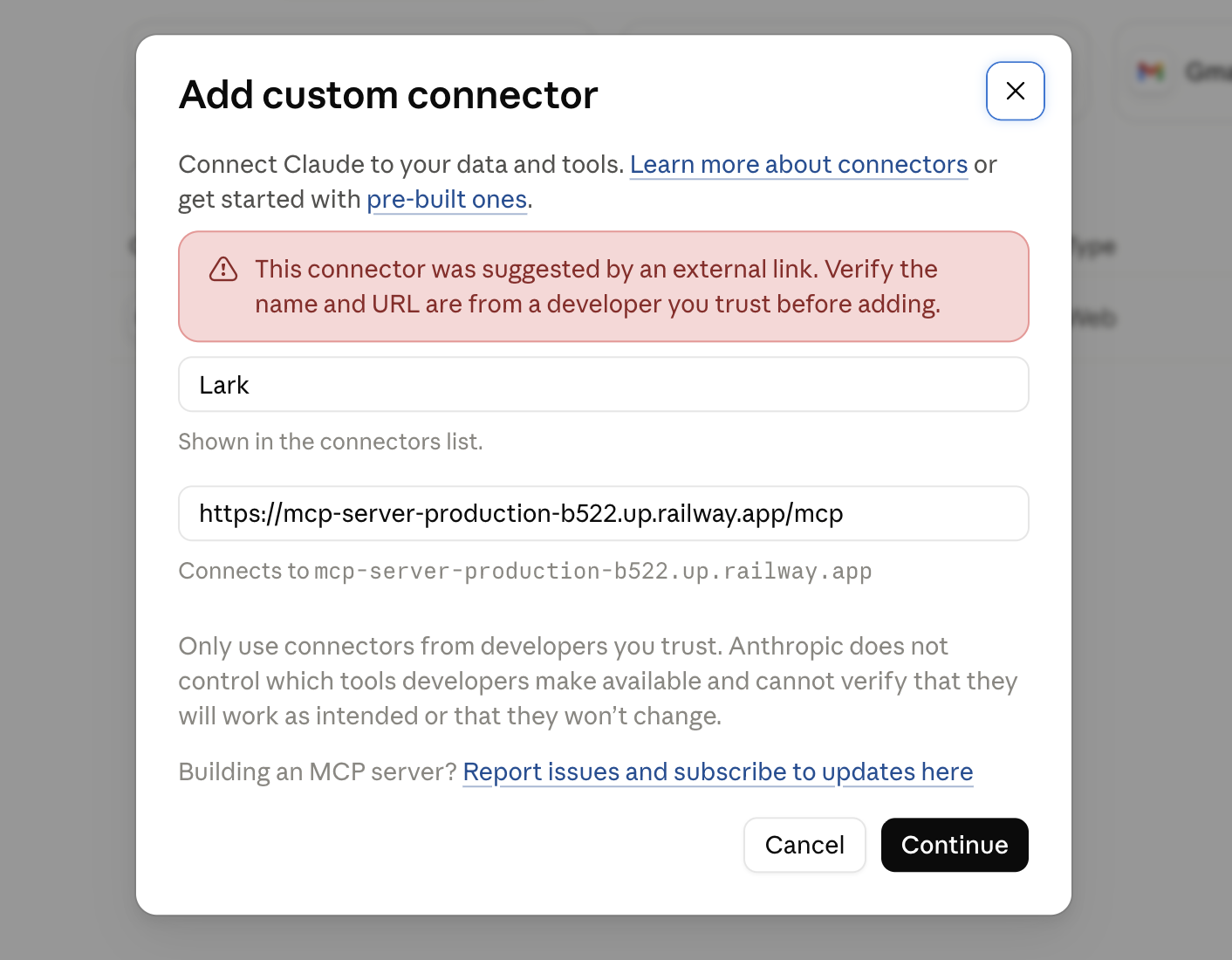
Add Lark to Claude
The button above opens Claude's Add custom connector dialog with the name and connection URL already filled in, so there is nothing to type. Claude warns that the connector was suggested by an external link, which is exactly what happened, since you arrived from this page. Check the URL reads mcp.checklark.com, then hit Continue.
- 2
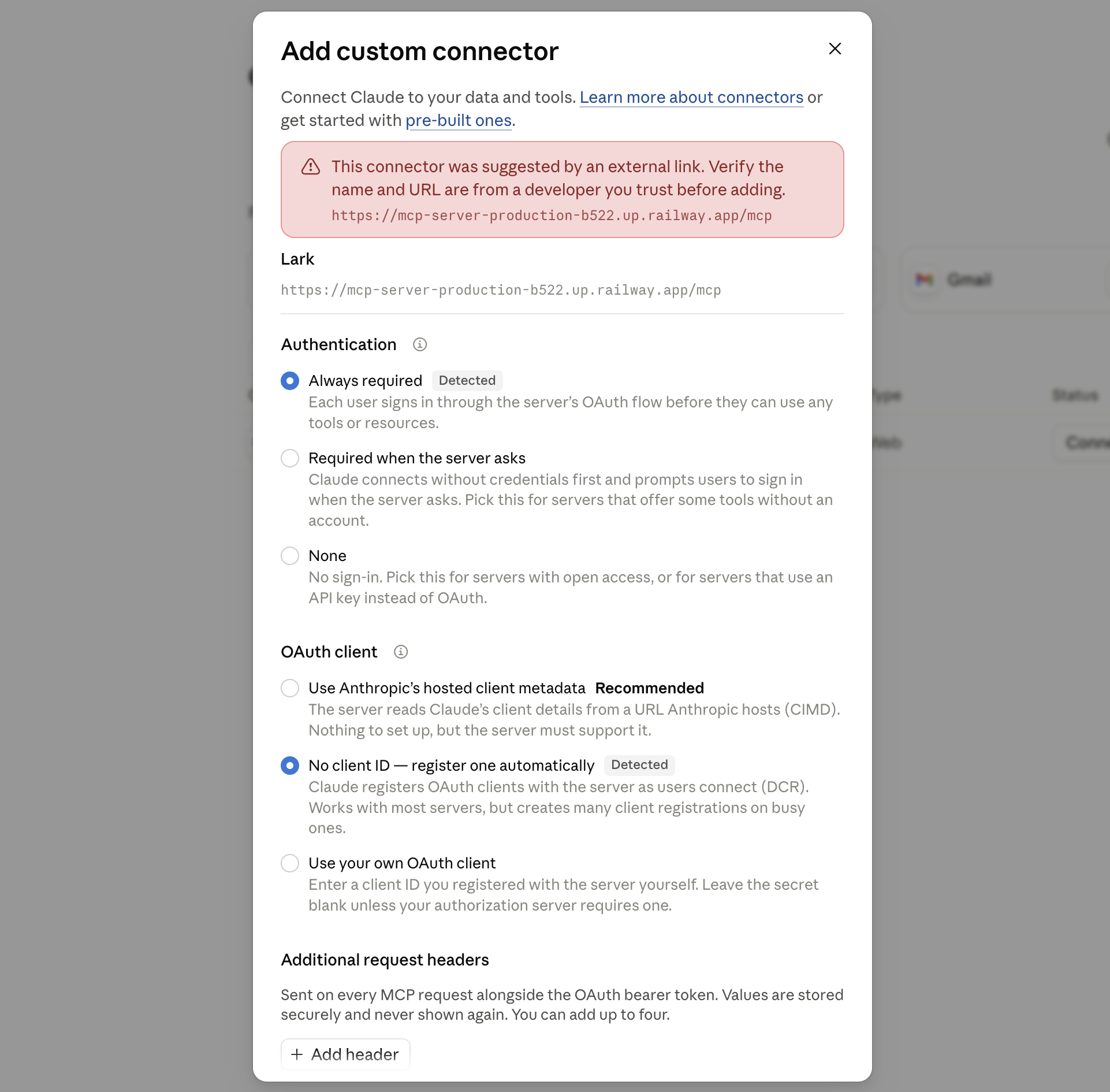
Leave the defaults and add it
Claude probes the server and preselects what it needs, so leave every option alone. Authentication lands on Always required, because every Lark tool sits behind a sign-in, and the OAuth client lands on registering one automatically, which is what our server supports. Leave the request headers empty, then hit Add.
- 3
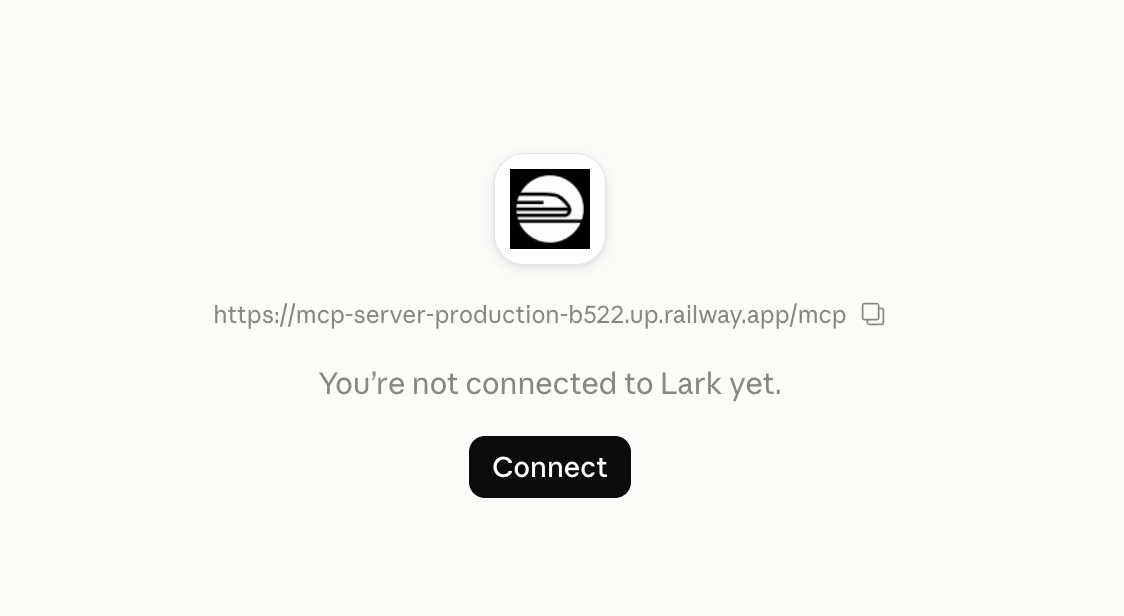
Connect
Adding the connector might not sign you in. If you see the Connect button like below, click it. Claude sends you off to sign in and grant access. Use the same account you use for Lark. The connector only ever sees what that account can already see.
- 4
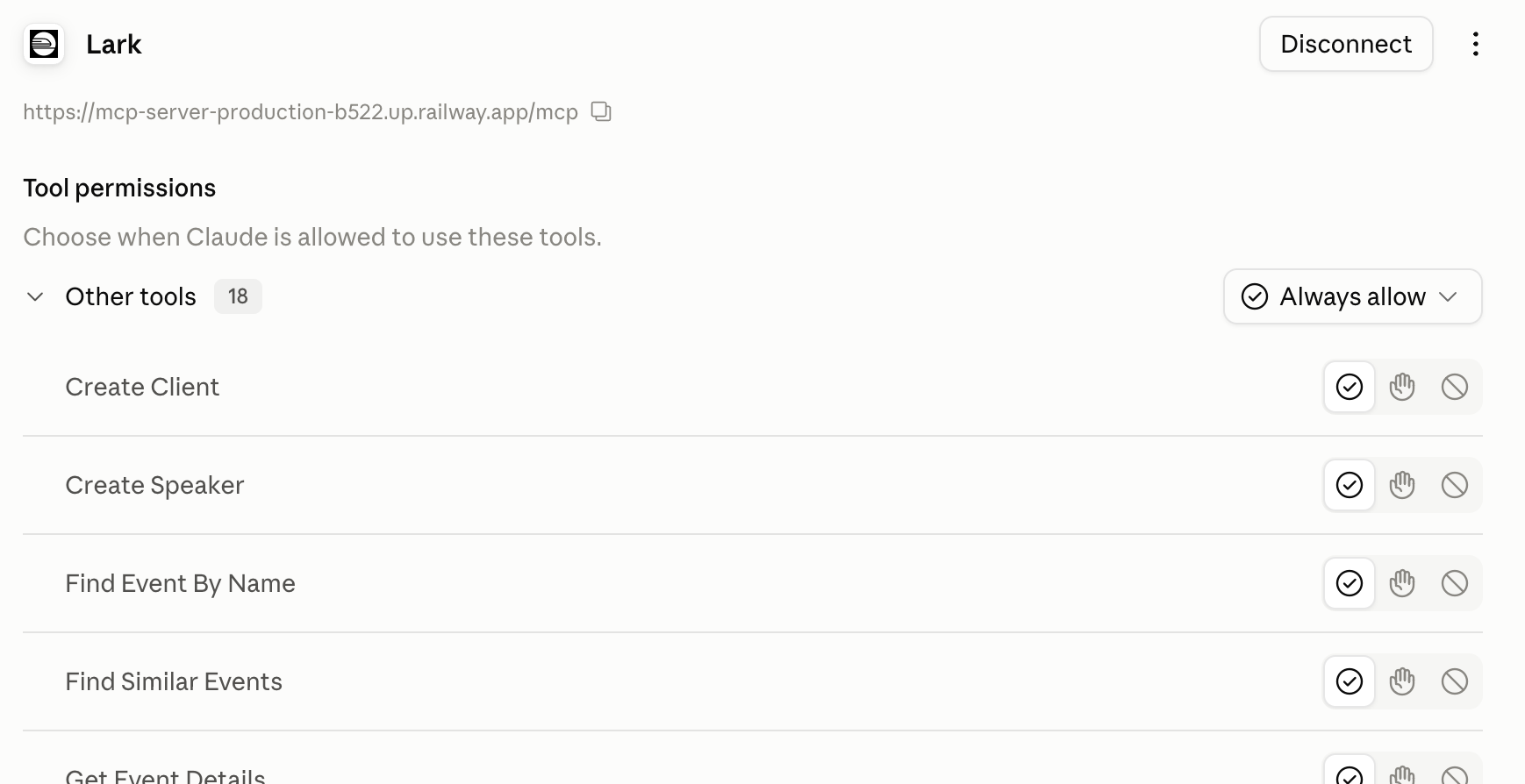
Grant tool access
This is up to you. Choose Always or Needs Approval for each tool or group of tools.
- 5
Ask Claude something
Claude can now search events, read your clients and speakers, and save events into a pipeline. Open up a new chat and try out the prompts below. It also comes with guided workflows for onboarding a client and finding events for a speaker.
Starter prompts
“Check what clients and speakers I have set up in Lark. If I have data, brief me on what’s there: upcoming deadlines, events worth pitching, gaps. Then suggest what to work on today. If I’m starting fresh, help me set up my first client and speaker profile.”
“Using Lark, show me all AI events in North America this year”
Connect to ChatGPT
Add Lark to ChatGPT as a custom app. Same tools as Claude, one extra step: ChatGPT can't prefill the form, so you paste the server URL yourself.
- 1
Turn on Developer mode
Custom apps only show up in ChatGPT on the web, on a paid plan, with Developer mode on. On chatgpt.com open Settings, then Security and login, and switch on Developer mode. On a Business workspace an admin has to allow it first, under Permissions and Roles.
- 2
Open the New App form
The button above opens it, and copies our server URL to your clipboard on the way. If it lands on the Plugins list instead, look for the plus button, or Plugin Management at the bottom of the list.
- 3
Fill in the form
Name it Lark. Leave Connection on Server URL and paste https://mcp.checklark.com/mcp. Leave Authentication on OAuth. The Advanced OAuth settings panel fills itself in from the server, so leave it alone. Tick the box that says you understand custom servers are unreviewed, then hit Create.
- 4
Sign in
ChatGPT sends you to Lark to sign in and grant access. Use the same account you use for Lark. The app only ever sees what that account can already see.
- 5
Ask ChatGPT something
Start a new chat and try the prompts below. ChatGPT asks before it saves or changes anything unless you allow low-risk actions in the Plugins settings.
Starter prompts are the same as for Claude, listed just above.